Quick answer. After this you can find an old lesson plan, worksheet, quiz or paper, reopen it and print it again.
Read what the video shows
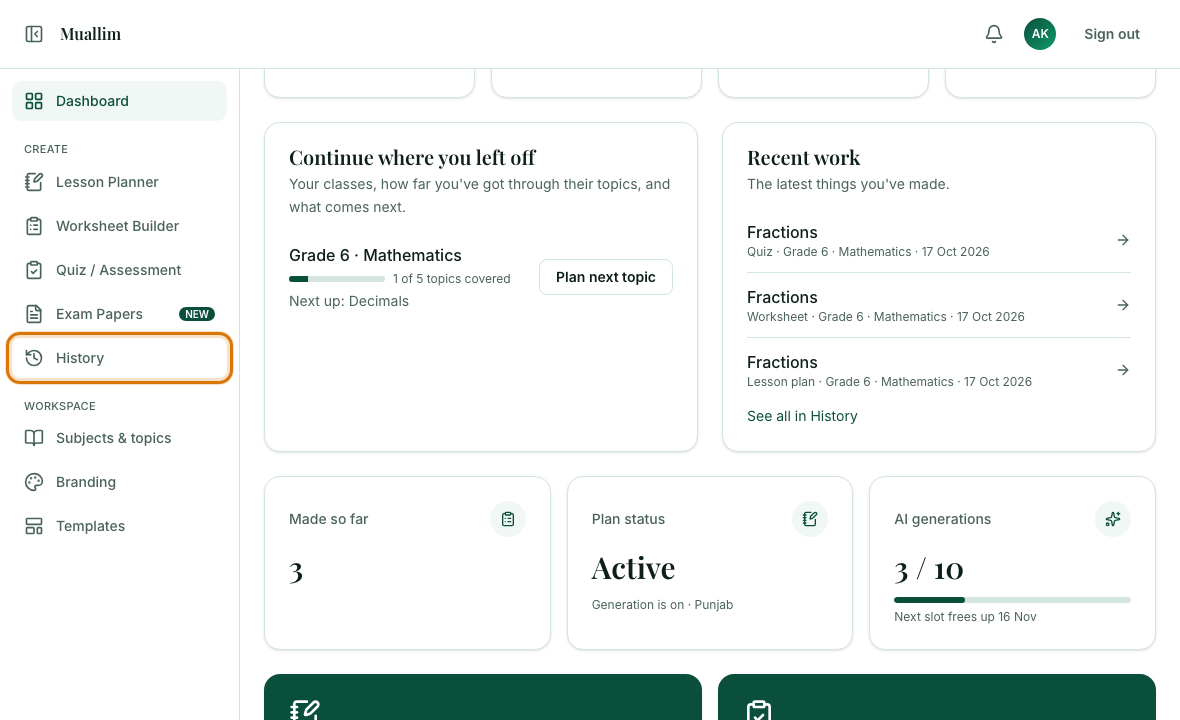
Open History from the left menu. Use the tabs to filter by kind. Tick Grouped by unit to see items that belong together. Select an item to open it and print it again.
Open History
In the left menu, under Create, choose History. Everything you have generated is listed there, newest first, with the date.
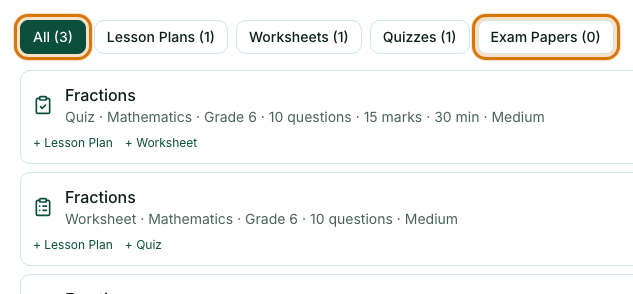
Filter by kind
Use the tabs at the top: All, Lesson Plans, Worksheets, Quizzes and Exam Papers. The number in brackets is how many you have of each.
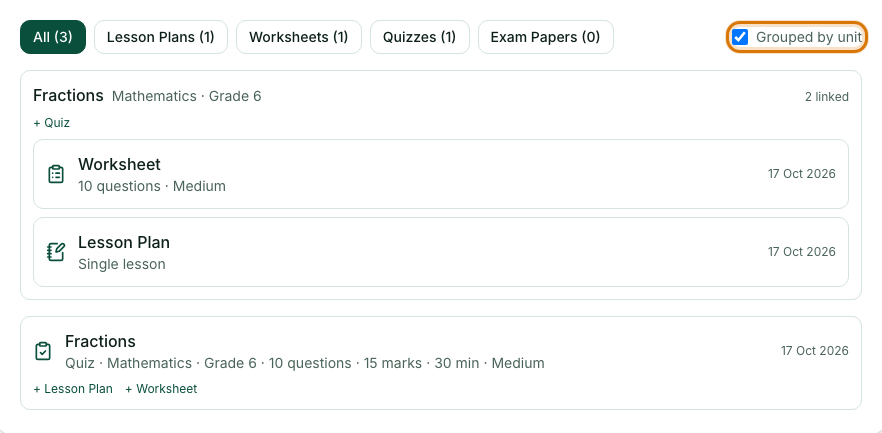
Group by unit (optional)
Tick Grouped by unit to see items that belong together. When you make a worksheet or quiz from a lesson plan with "Make a worksheet" or "Also create for this topic", they are grouped as one unit.
Open an item
Select an item to open it in its editor. You can change it, select Save, and print it again.
Delete an item you no longer need
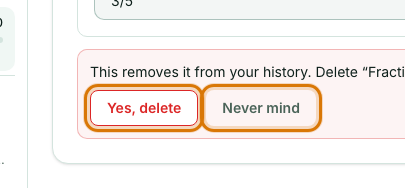
Inside the item, select the Delete button at the bottom. Muallim asks you to confirm: choose Yes, delete to remove it from your history, or Never mind to keep it.
Frequently asked questions
- Where are my lesson plans and worksheets saved?
- In History, in the left menu. Everything you generate is kept there, newest first, with its date.
- Can I reopen and edit something I made last week?
- Yes. Select the item in History to open it in its editor, change it, select Save and print it again.
- How do I delete something from History?
- Open the item and select its Delete button, then choose Yes, delete to confirm. Choose Never mind to keep it.
Ready to try it on your own class? The Free plan includes 10 AI generations in any 30 days. No card needed.
Keep reading
- Your dashboard explained: What the numbers and cards on your home page mean, and how to pick up where you left off.
- Printing and saving your work: Which button prints what, how to save a PDF, and how to share a lesson plan on WhatsApp.
- About the Content History & Reuse: what it does and who it is for.