Quick answer. After this you can use the dashboard to see your progress and jump straight to your next lesson.
The dashboard is your home page. It is an overview of your own work, and every card is a shortcut.
The Get started checklist
While you are new, a Get started card at the top lists your first two steps: create a lesson plan, and create a worksheet or quiz. Each step ticks itself once you have done it, and the card goes away when both are done. You can hide it earlier with the X.
Your counts
The top row shows how many lesson plans, worksheets, quizzes and exam papers you have made. Select one to open it in History.

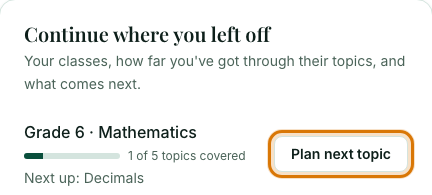
Continue where you left off
For each class you teach, you see how many topics you have covered and which topic comes next. Select Plan next topic to start it with the class already chosen.
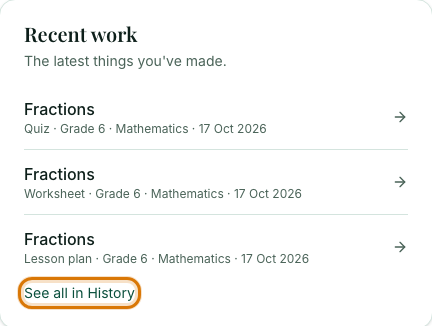
Recent work
The latest things you made, with the class and date. Select an item to reopen it, or See all in History for the full list.
Plan and usage
Plan status shows whether your plan is active. AI generations shows how many you have used. Free accounts have 10 in any 30 days; paid plans show Unlimited.

The tools
At the bottom, a card for each tool takes you straight to the Lesson Planner, Worksheet Builder, Quiz / Assessment, Exam Papers or History.
Frequently asked questions
- What does Continue where you left off show?
- For each class you teach it shows how many topics you have covered and which topic is next, with a button that starts that topic with the class already chosen.
- Where can I see everything I have made?
- Select Recent work's See all in History link, or open History in the left menu. Everything you generated is kept there, newest first.
- Why do I see a Get started checklist?
- New teachers see a short checklist that ticks itself as you create a lesson plan and a worksheet or quiz. It disappears when both are done, or you can hide it.
Ready to try it on your own class? The Free plan includes 10 AI generations in any 30 days. No card needed.
Keep reading
- Make your first lesson plan in 3 minutes: Pick a class and topic, generate a plan, check it and print it.
- Find, reopen and delete past work: Everything you have made is kept in History, newest first.