Quick answer. After this you will have a classroom-ready lesson plan, ready to print or save as a PDF.
Read what the video shows
Open Lesson Planner from the left menu. Choose the level, grade and subject, then choose or type a topic. Optionally add a subtopic and notes, check More options, and select Generate lesson plan.
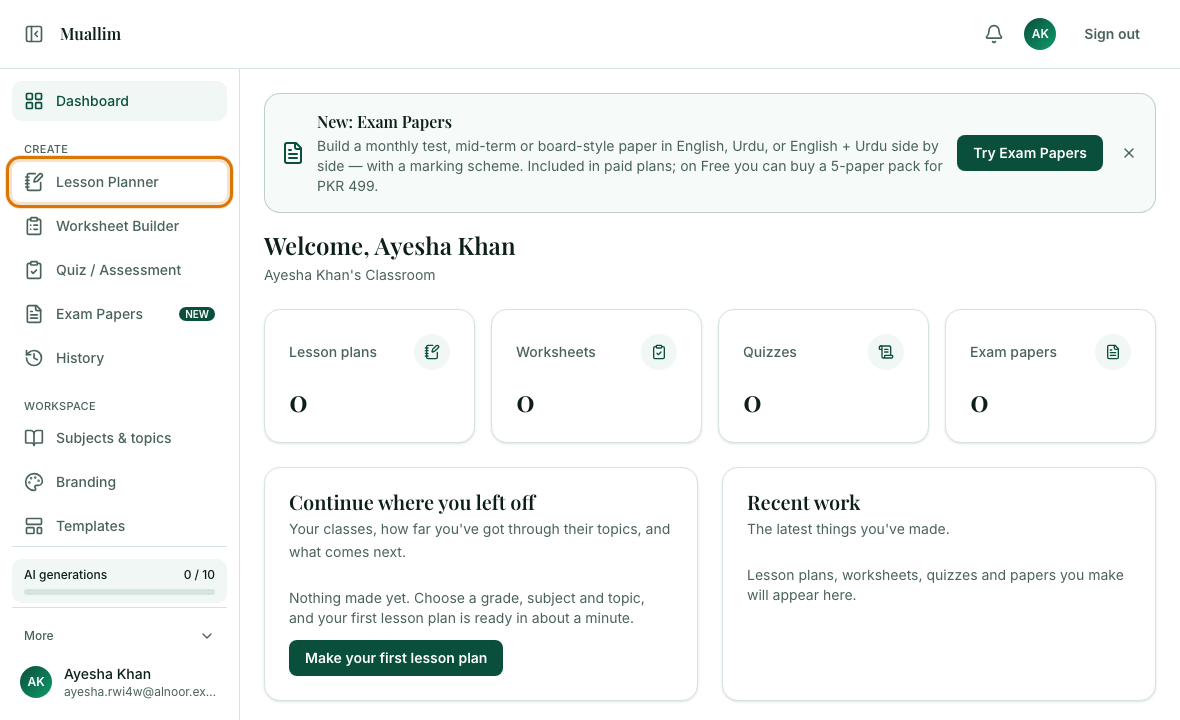
Open Lesson Planner
In the left menu, under Create, choose Lesson Planner.
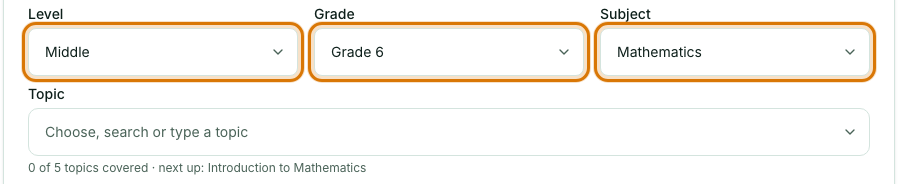
Choose your class
Pick Level, then Grade, then Subject. Each box is searchable: start typing to narrow the list. Muallim remembers your last class, so next time it is already filled in.
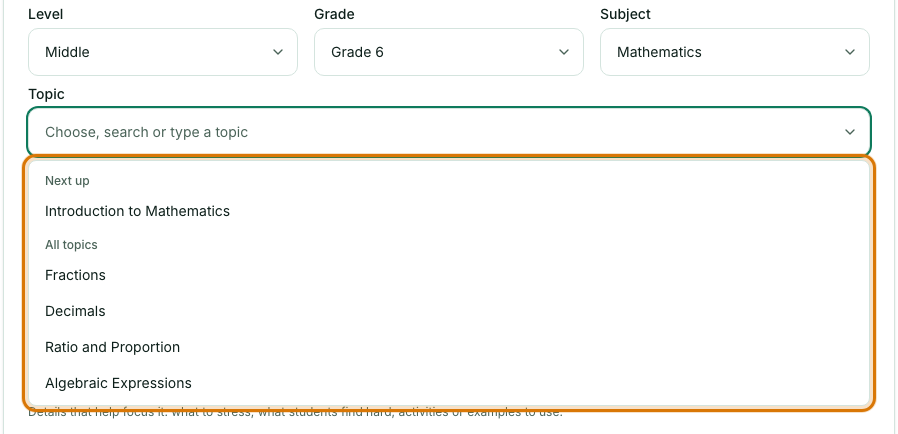
Choose or type a topic
Open the Topic box and pick from the list, or type your own. Topics marked Next up follow the order your subject is usually taught in.
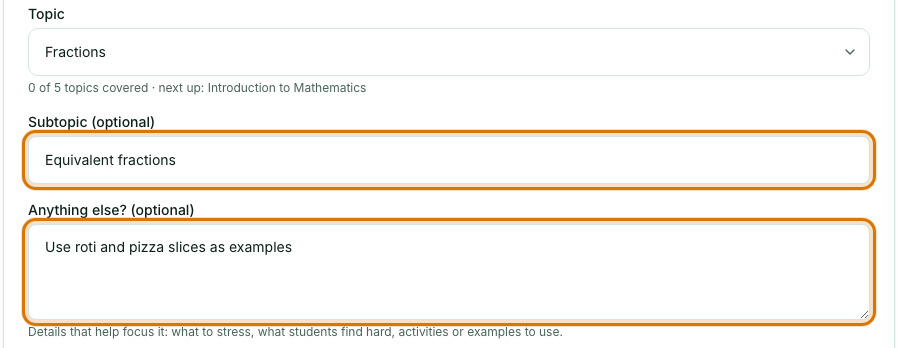
Add a subtopic or notes (optional)
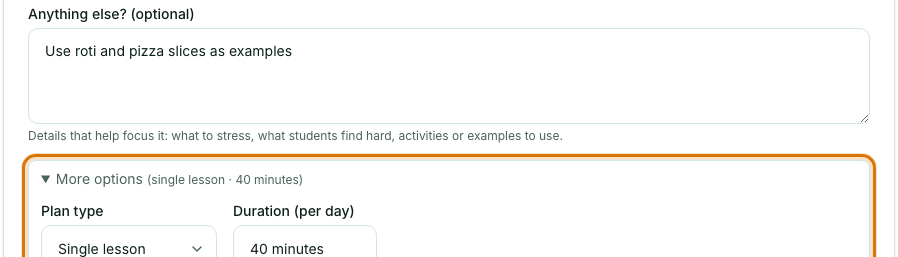
Use the Subtopic box to narrow the lesson. Use Anything else? for preferences such as "use examples from daily life". Notes can guide the content but cannot change the layout of the plan.
Check More options
Open More options to switch between a single lesson and a weekly or unit plan, set the duration, or choose a section. The defaults suit most lessons.
Select Generate lesson plan
This takes a short while. Your plan appears on the same page.

Read, edit and print
Read the plan, make any changes you want, then print it or save it as a PDF. It is also kept in History so you can open it again later.
Frequently asked questions
- How long does it take to make a lesson plan in Muallim?
- About three minutes. You choose your level, grade, subject and topic, select Generate lesson plan, then read and edit the result.
- Can I edit the lesson plan after it is generated?
- Yes. Every plan opens in an editor, so you can change anything, select Save, and print it or save it as a PDF.
- How many AI generations does the Free plan include?
- The Free plan includes 10 AI generations in any rolling 30 days, shared across lesson plans, worksheets and quizzes. Paid plans have no limit.
Ready to try it on your own class? The Free plan includes 10 AI generations in any 30 days. No card needed.
Keep reading
- Choosing your class, subject and topic: How the Level, Grade, Subject and Topic boxes work, and how to add your own.
- Focus your content with Subtopic and Anything else?: Two optional boxes that focus a lesson plan, worksheet or quiz on what your class needs.
- Make a worksheet with an answer key: Choose the question types and difficulty, generate, tidy it up, and print a student copy and an answer key.
- Printing and saving your work: Which button prints what, how to save a PDF, and how to share a lesson plan on WhatsApp.
- About the AI Lesson Planner: what it does and who it is for.