Quick answer. After this you can print a practice worksheet for your class and keep the answers for yourself.
Read what the video shows
Open Worksheet Builder from the left menu. Choose the level, grade, subject and topic. Open More options and pick the question types you want. Select Generate worksheet. When it appears, use Export student copy and Export answer key to print, and check the questions in the preview first.
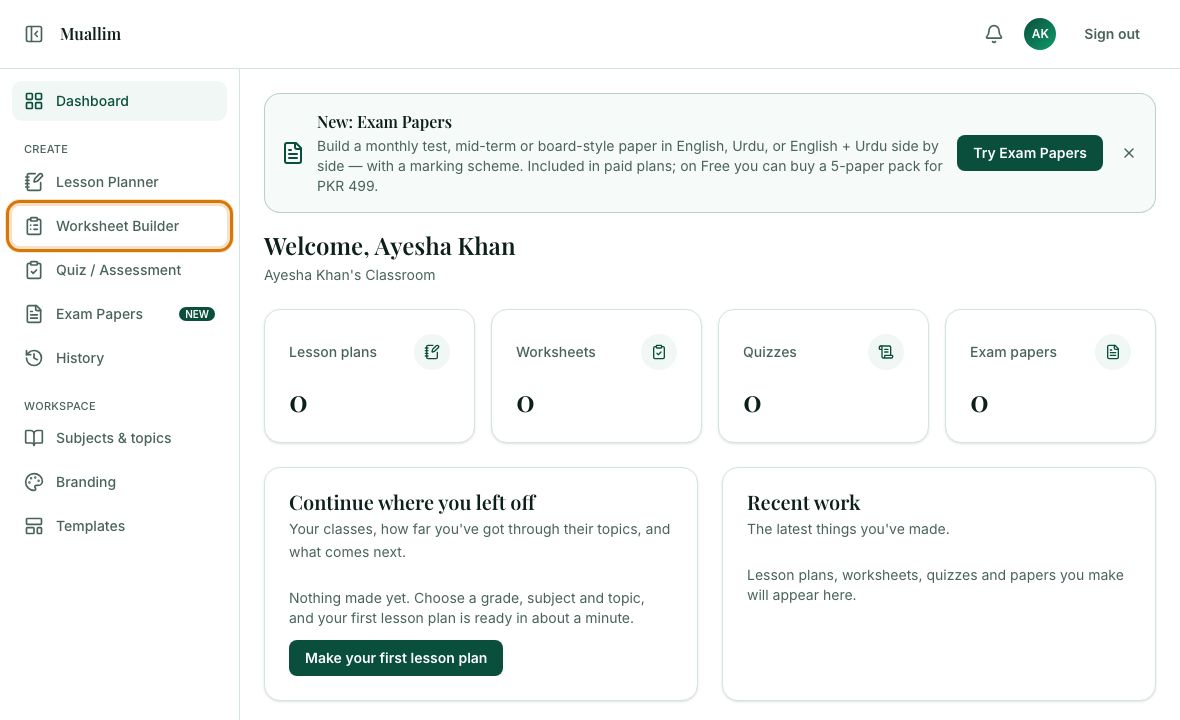
Open Worksheet Builder
In the left menu, under Create, choose Worksheet Builder.
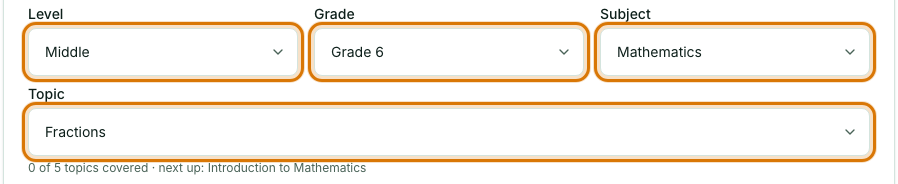
Choose your class and topic
Pick Level, Grade, Subject and Topic exactly as in the Lesson Planner (see Choosing your class, subject and topic). You can add a subtopic and an Anything else? note too.
Open More options
Here you decide how many questions (1 to 30, 10 by default), the difficulty (Easy, Medium or Hard) and which question types to include. If your school uses sections, you can pick one here as well.
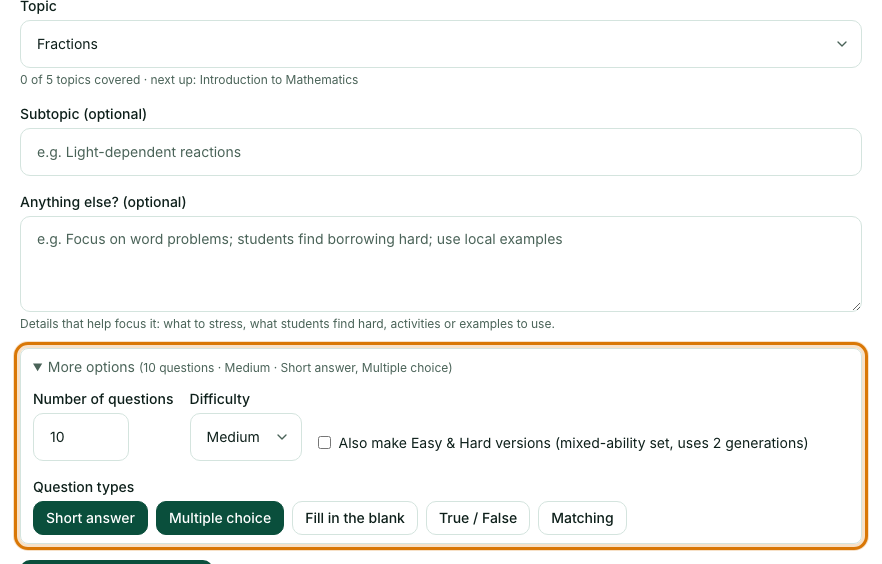
Pick the question types
Select the buttons for the types you want: Short answer, Multiple choice, Fill in the blank, True / False and Matching. The ones highlighted are included. Short answer and Multiple choice are on by default.

Select Generate worksheet
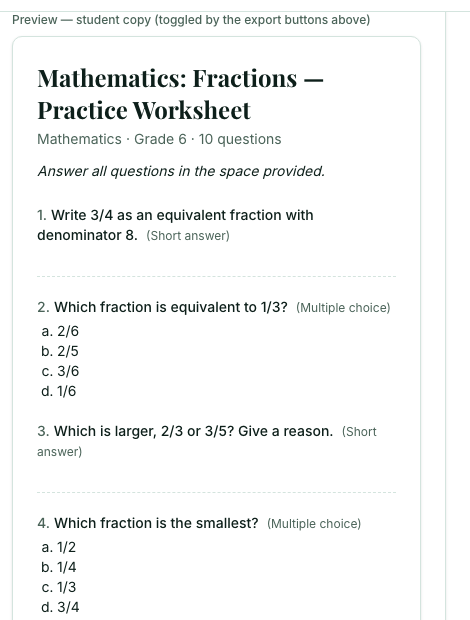
When it is ready, the worksheet appears below the form with its title, instructions and questions.
Check and edit
Read every question and change anything that does not suit your class. For a Matching question, write one pair per line as left | right; the right-hand column is shuffled automatically when you print. Select Save to keep your changes.
Print the student copy and the answer key
Select Export student copy for the sheet your students write on, and Export answer key for your own marking. See Printing and saving your work for how the print window works.

Frequently asked questions
- Which question types can a Muallim worksheet include?
- Short answer, Multiple choice, Fill in the blank, True / False and Matching. Short answer and Multiple choice are selected by default.
- How many questions can a worksheet have?
- Between 1 and 30, with 10 by default. You can also choose Easy, Medium or Hard difficulty.
- Can I make Easy and Hard versions of the same worksheet?
- Yes. Tick the Easy and Hard versions option for a mixed-ability class. It uses 2 generations instead of 1 and gives you a separate tab and answer key for each level.
Ready to try it on your own class? The Free plan includes 10 AI generations in any 30 days. No card needed.
Keep reading
- Choosing your class, subject and topic: How the Level, Grade, Subject and Topic boxes work, and how to add your own.
- Make a marked quiz: A formal quiz with marks for every question, a time limit and an answer key.
- Printing and saving your work: Which button prints what, how to save a PDF, and how to share a lesson plan on WhatsApp.
- Focus your content with Subtopic and Anything else?: Two optional boxes that focus a lesson plan, worksheet or quiz on what your class needs.
- About the AI Worksheet Builder: what it does and who it is for.