Quick answer. After this you can set up any lesson plan, worksheet, quiz or paper for the right class quickly.
Read what the video shows
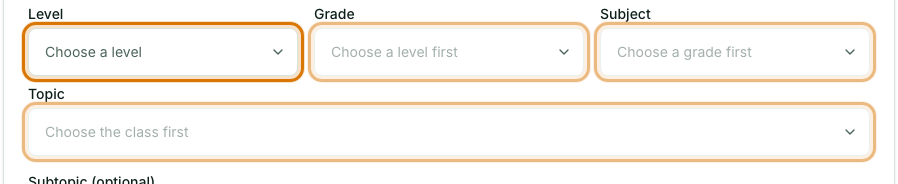
The four boxes are Level, Grade, Subject and Topic. Choose a level, then type in the Grade box to narrow the list and pick a grade. Choose a subject; if yours is not listed, type it and add it as your own. Open the Topic box to see Next up and your other topics, and pick one. Muallim remembers the class for next time.
Every builder starts with the same four boxes, in the order teachers think of a class: Level, then Grade, then Subject, then Topic. You choose them each time you make something, so you can move between classes without changing any settings.
Level
Choose Primary, Middle, Secondary or Higher secondary. Only levels that have grades for your board are shown.
Grade
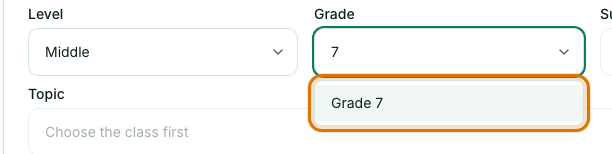
The grades for that level. If you change the level, a grade from another level is cleared. Typing narrows the list.
Subject
The subjects for that grade. If you change the grade, your subject is kept when the new grade also has it. If yours is missing, type it and choose Add as my own subject.

Topic
Pick from the list or type your own. Topics you have already covered are ticked, and the next topic in teaching order is marked Next up. Under the box you will see how many topics you have covered, for example 3 of 12.
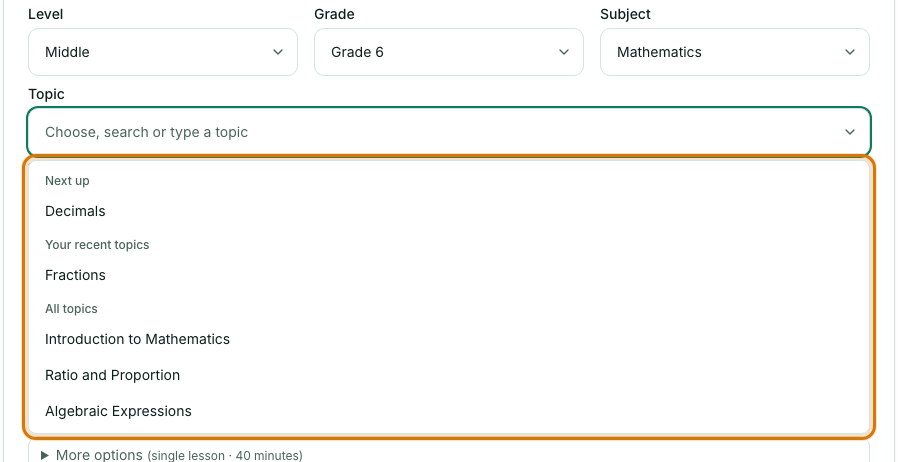
All four boxes are searchable. Type a few letters and the list narrows.

- Your subject is not listed: type it and choose Add as my own subject. It is saved to your own list for that grade.
- Your topic is not listed: type it and choose Save to my list to keep it for next time. If you do not save it, it is used as typed for this lesson.
- Muallim remembers your last class in every builder, so you only change it when you teach something different.
- To see or manage what you have added, open Subjects & topics in the left menu.
Frequently asked questions
- What do the Level, Grade, Subject and Topic boxes do?
- They set the class a lesson plan, worksheet, quiz or paper is made for. Each box is searchable, and you choose them in that order each time you make something.
- What if my subject or topic is not in the list?
- Type it and choose Add as my own subject, or type the topic and select Save to my list. Only you can see what you add.
- What does Next up mean in the Topic list?
- It marks the next topic in the usual teaching order for that subject, after the ones you have already covered. Covered topics show a tick.
Ready to try it on your own class? The Free plan includes 10 AI generations in any 30 days. No card needed.
Keep reading
- Make your first lesson plan in 3 minutes: Pick a class and topic, generate a plan, check it and print it.
- Your own subjects and topics: Add a subject or topic that is not in the list, and see or remove what you have added.
- About the AI Lesson Planner: what it does and who it is for.