Quick answer. After this you can teach any subject or topic and find it again next time.
The lists of grades, subjects and topics cover the usual curriculum. When something you teach is not there, add it yourself from any builder. Only you can see what you add.
Add a subject
In any builder, choose the Level and Grade, then type your subject in the Subject box. When the list says it is not found, choose Add as my own subject.

Add a topic
Type your topic in the Topic box. Below it, select Save to my list to keep it for next time. If you do not save it, it is used as typed for that one lesson.

See what you have added
In the left menu choose Subjects & topics. Everything you typed in a builder is listed under Added while making something, with its grade and subject. If you run a one-teacher account, you can also add subjects and topics directly at the top of this page.
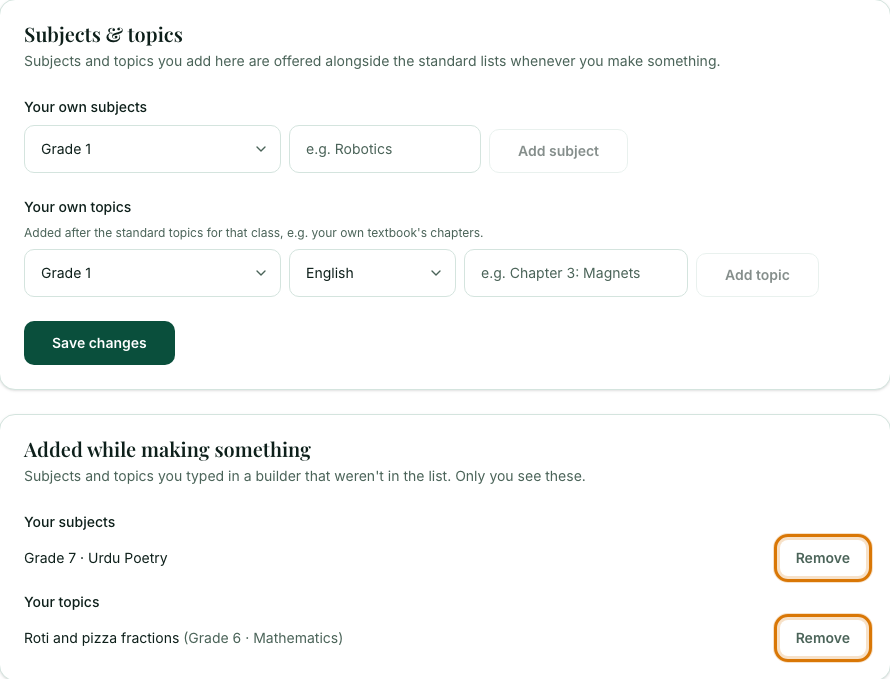
Remove what you no longer need
Select Remove next to a subject or topic. It disappears from your lists.
Frequently asked questions
- Can I add a subject that is not listed?
- Yes. Type it in the Subject box and choose Add as my own subject. It is saved for that grade.
- Who can see the subjects and topics I add?
- Only you. A school admin can add subjects and topics for everyone at the school separately.
- Why can I not add my own subject?
- Your school may have locked the list to the classes your principal assigned. Ask your school admin to turn the lock off or to assign you the class.
Ready to try it on your own class? The Free plan includes 10 AI generations in any 30 days. No card needed.
Keep reading
- Choosing your class, subject and topic: How the Level, Grade, Subject and Topic boxes work, and how to add your own.