Quick answer. After this you can print a timed quiz and a marking key for tomorrow's class.
Read what the video shows
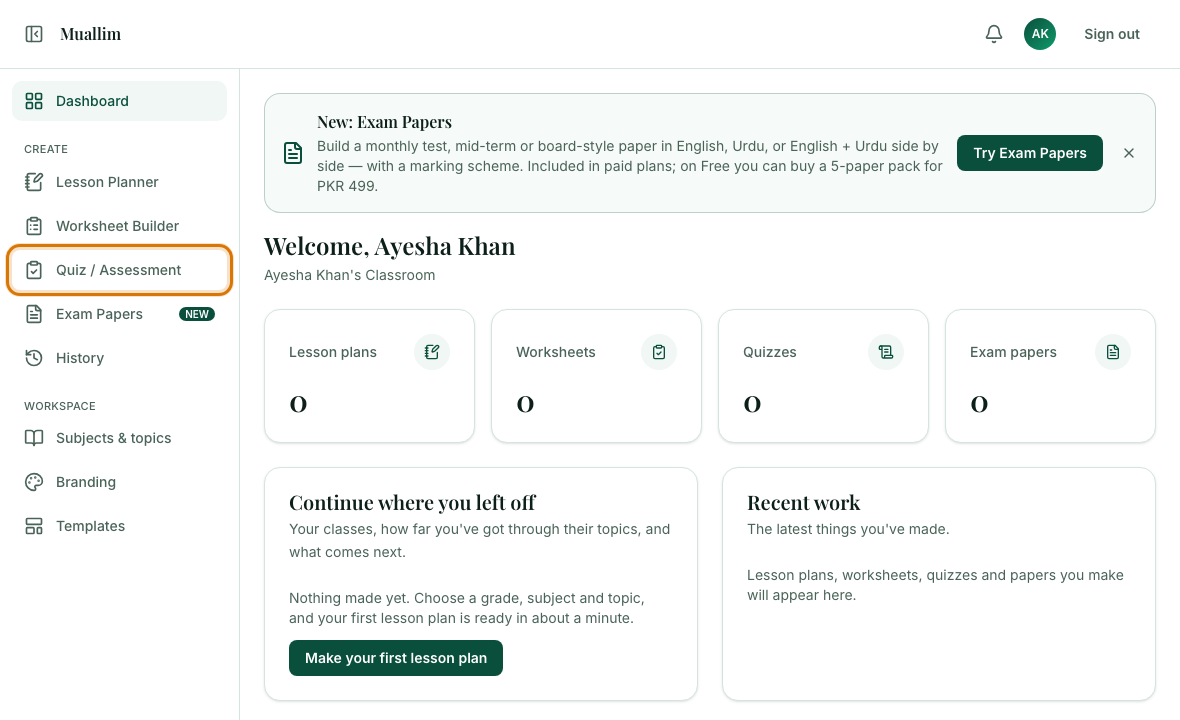
Open Quiz / Assessment from the left menu. Choose the class and topic. Open More options and set the time allowed. Select Generate quiz. Print the student copy and the answer key; every question shows its marks in the preview.
The Quiz / Assessment builder works like the Worksheet Builder, with two differences: every question carries marks, and you set the time allowed. Use it when you want something you can mark and record.
Open Quiz / Assessment
In the left menu, under Create, choose Quiz / Assessment.
Choose your class and topic
Level, Grade, Subject and Topic work the same as everywhere else. Add a subtopic or an Anything else? note if you want to focus the quiz.
Open More options
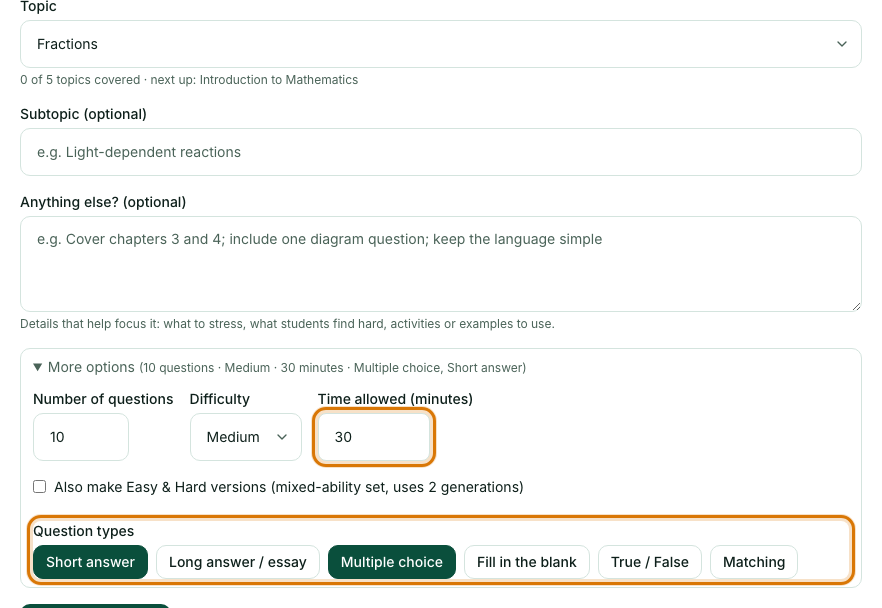
Set the number of questions, the difficulty, and Time allowed (minutes, from 5 to 180). Choose the question types: Short answer, Long answer / essay, Multiple choice, Fill in the blank, True / False and Matching.
Select Generate quiz
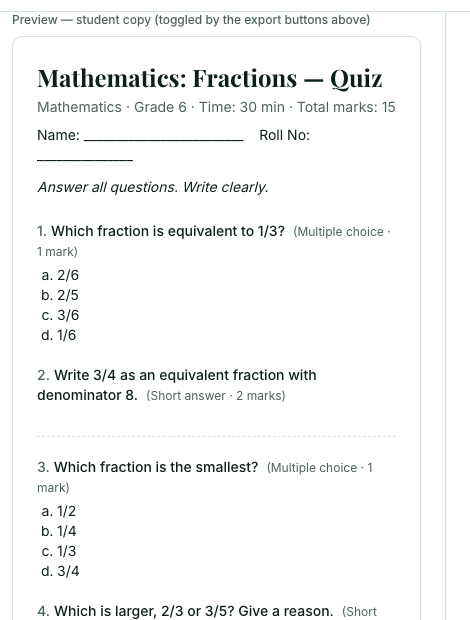
The quiz appears below the form, with marks next to each question.
Check the marks and edit
Read each question and its marks, change what you need, and select Save. Muallim chooses sensible marks (for example 1 for a multiple choice question and more for a long answer), but you decide what suits your class.
Print it
Select Export student copy for the students and Export answer key for your marking. The answer key shows the correct answers.

Frequently asked questions
- How is a Muallim quiz different from a worksheet?
- Every quiz question carries marks and the quiz has a time limit, so you can mark it and record results. Worksheets are for practice.
- What time limit can I set on a quiz?
- Anything from 5 to 180 minutes, set under More options before you generate.
- Does the quiz include an answer key?
- Yes. Select Export answer key to print the quiz with the correct answers for marking.
Ready to try it on your own class? The Free plan includes 10 AI generations in any 30 days. No card needed.
Keep reading
- Make a worksheet with an answer key: Choose the question types and difficulty, generate, tidy it up, and print a student copy and an answer key.
- Build an exam paper with a marking scheme: A monthly test, mid-term or final paper in English, Urdu or both, laid out like a board paper.
- Printing and saving your work: Which button prints what, how to save a PDF, and how to share a lesson plan on WhatsApp.
- About the AI Quiz & Assessment: what it does and who it is for.