Quick answer. After this your colleagues can join your school and start making content under your plan.
Free and Teacher Pro accounts have one seat. Adding colleagues needs School Starter (10 teachers) or School Pro (50).
Read what the video shows
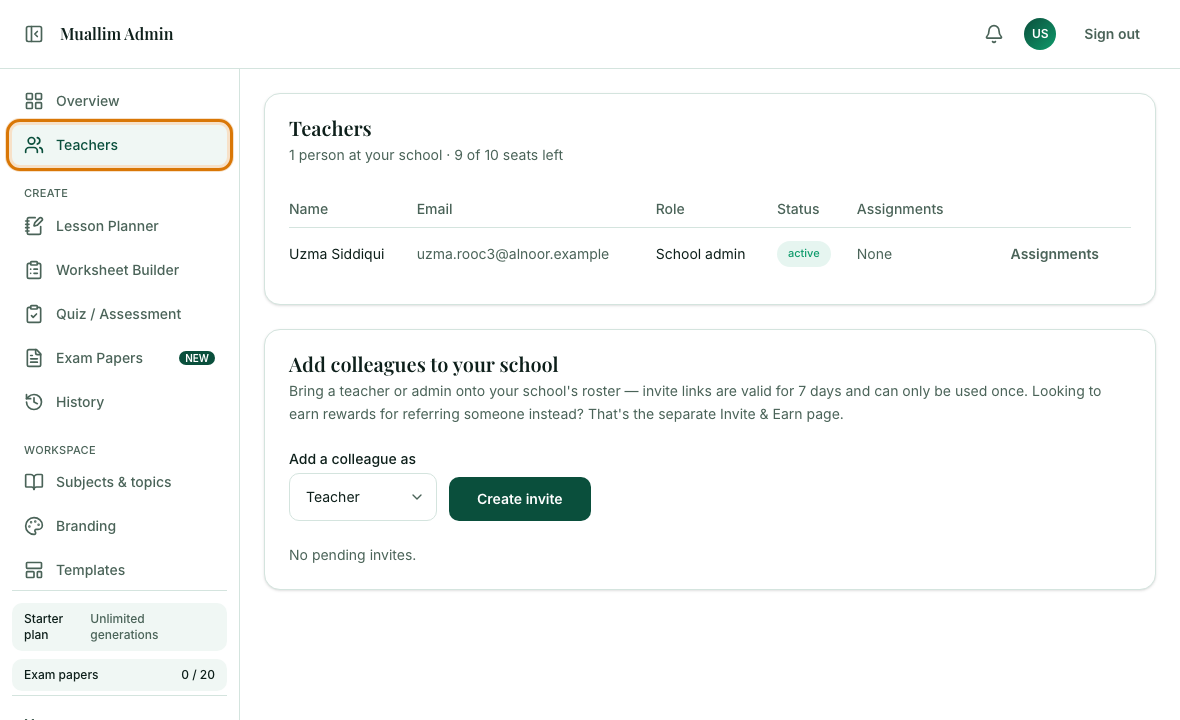
Open Teachers from the left menu. Choose whether to add a Teacher or a School admin, then select Create invite. Copy the link and send it to your colleague. The link works once and expires after 7 days; pending invites show their expiry date.
Open Teachers
In the left menu choose Teachers.
Choose the role
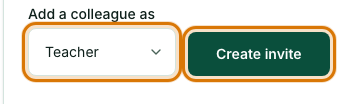
Under Add a colleague as, choose Teacher for a normal teacher or School admin for someone who should also manage the school. Then select Create invite. A link appears.
Share the link
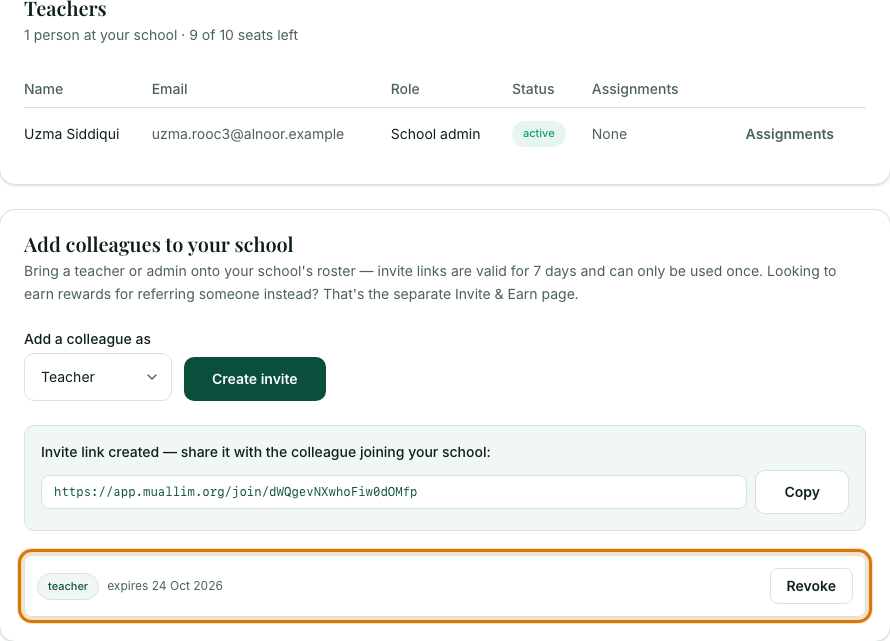
Copy the link with the Copy button and send it to your colleague, for example on WhatsApp. They open it, create their account and join your school.

Check who has joined
The Teachers page lists your roster. Invites that have not been used yet are shown as pending, with the date they expire.
Frequently asked questions
- How long does an invite link last?
- Seven days, and it can be used only once. If it expires or goes to the wrong person, revoke it and create a new one.
- How many teachers can I invite?
- School Starter allows up to 10 teachers and School Pro up to 50. Free and Teacher Pro accounts have one seat.
- Can I invite someone as a school admin?
- Yes. Under Add a colleague as, choose School admin instead of Teacher before you select Create invite.
Ready to set up your school? Register a school and start with a 7-day trial of School Starter or School Pro.
Keep reading
- Make your first lesson plan in 3 minutes: Pick a class and topic, generate a plan, check it and print it.
- About the School Admin Dashboard: what it does and who it is for.