Quick answer. After this every document your teachers print looks like it came from your school.
Read what the video shows
Open Branding from the left menu. Upload your logo. Fill in the display name, tagline and footer text. Check the preview, which shows how a printed page will look. Select Save branding.
Open Branding
In the left menu choose Branding.
Upload your logo
Under Logo, select Upload logo and choose an image from your device. The file can be up to 2 MB.

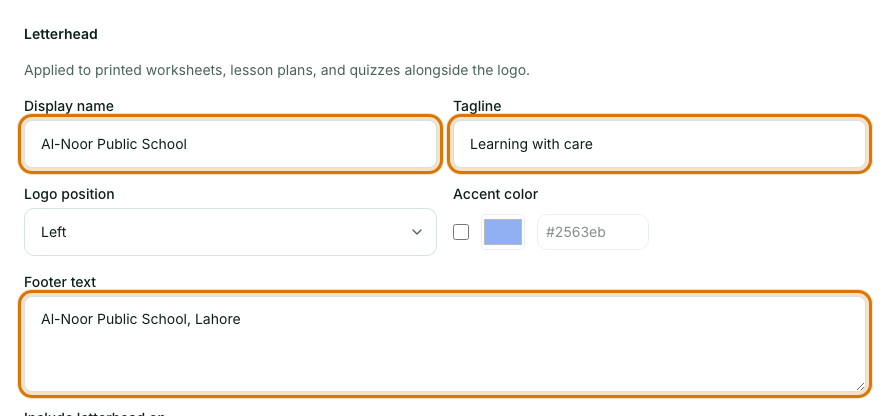
Fill in the letterhead
Enter the display name and tagline, choose where the logo sits (Left or Center) and write the footer text. To use an accent colour, tick the box beside Accent color and pick the colour.
Choose where it appears
Under Include letterhead on, tick Worksheets, Lesson plans and Quizzes as you wish.
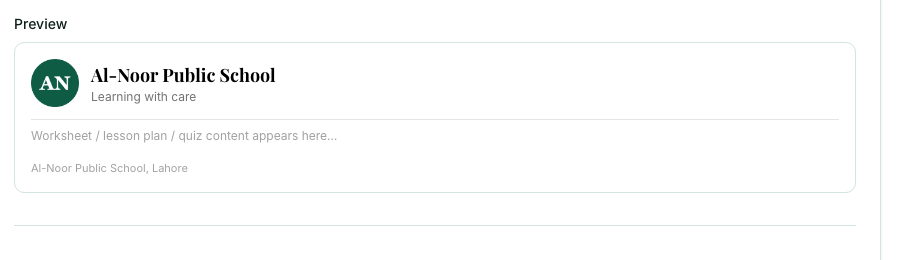
Check the preview
The Preview box shows how a printed page will look with your logo, name and colour.
Select Save branding
Your branding is used across the dashboards and on everything printed from now on.
Frequently asked questions
- How big can my logo file be?
- Up to 2 MB. Choose an image file under Logo and select Upload logo.
- Which documents get the letterhead?
- You choose: tick Worksheets, Lesson plans and Quizzes under Include letterhead on. A preview shows how a printed page will look.
- Can I use my school's existing document format?
- Yes. Under Custom patterns switch a document type to Custom pattern and upload a sample of your own document. Muallim suggests a matching layout that you can check before using it.
Ready to set up your school? Register a school and start with a 7-day trial of School Starter or School Pro.
Keep reading
- Choose a template for your documents: Pick a ready-made layout for worksheets, lesson plans and quizzes, or ask for one your school uses.
- Printing and saving your work: Which button prints what, how to save a PDF, and how to share a lesson plan on WhatsApp.
- Set up your school in 10 minutes: A checklist for a new school: your plan, document style, logo, teachers and subjects.
- About the School Admin Dashboard: what it does and who it is for.