Quick answer. After this your documents follow a layout you chose, on screen and on paper.
Read what the video shows
Open Templates from the left menu. Use the tabs to pick Worksheets, Lesson Plans or Quizzes. Select Preview to see a layout larger, then close it. Select Use this template on the one you want.
Open Templates
In the left menu choose Templates, or select Choose a template on your Overview page.
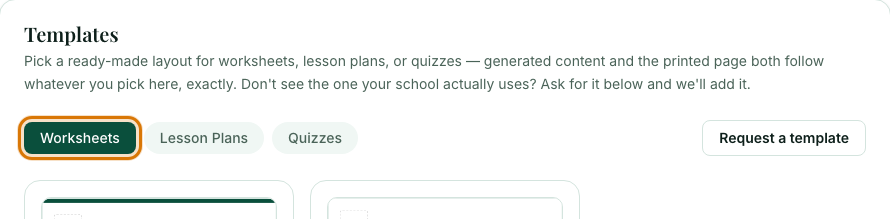
Pick a document type
Use the tabs Worksheets, Lesson Plans and Quizzes. Each has its own templates, and you choose one for each.
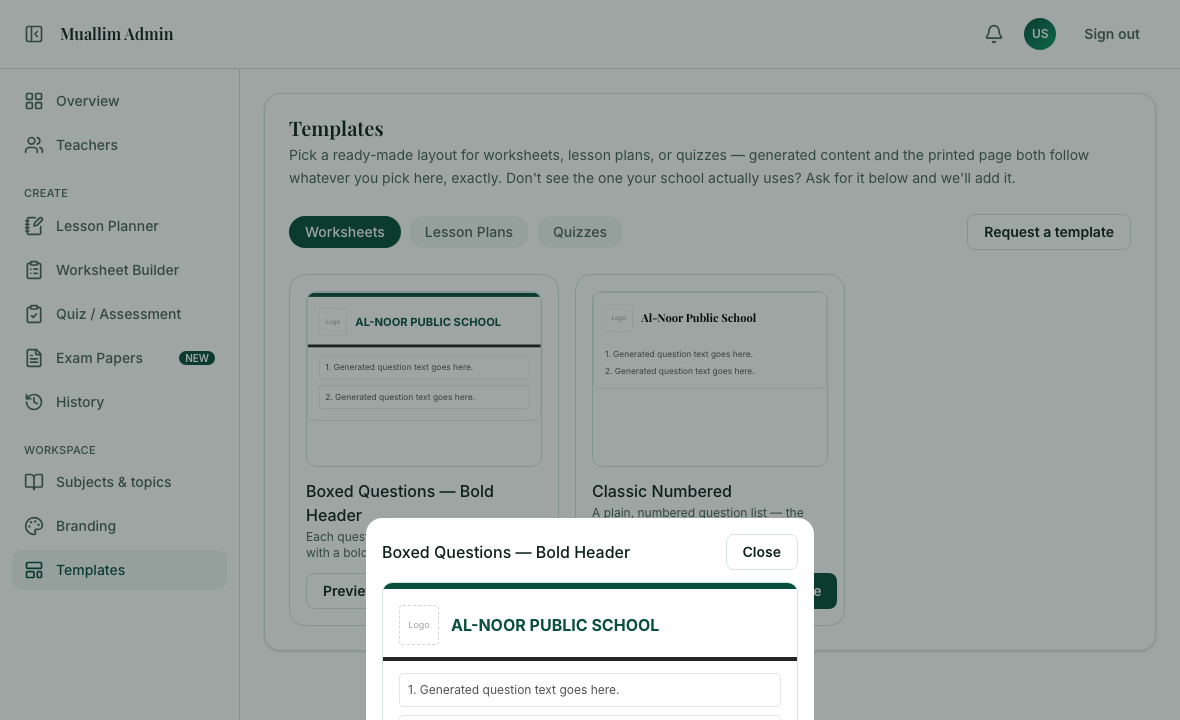
Preview the layout
Each template shows a small sample with your logo and school name. Select Preview to see it larger.
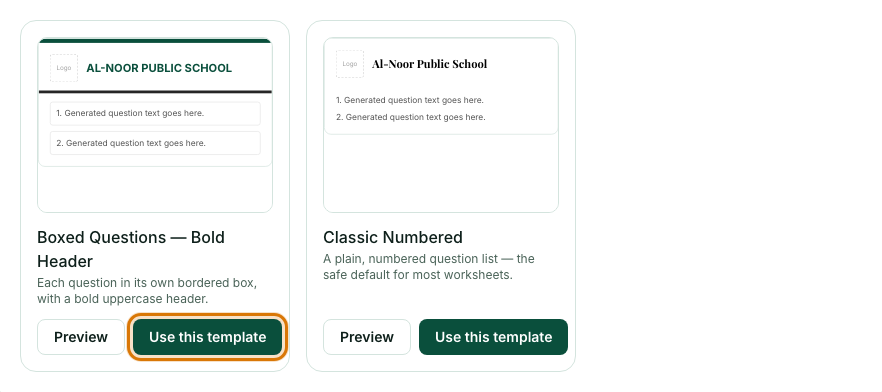
Select Use this template
From then on, generated content and the printed page both follow that template exactly.
Frequently asked questions
- What is a template in Muallim?
- A ready-made layout for worksheets, lesson plans or quizzes. Generated content and the printed page both follow the one you choose.
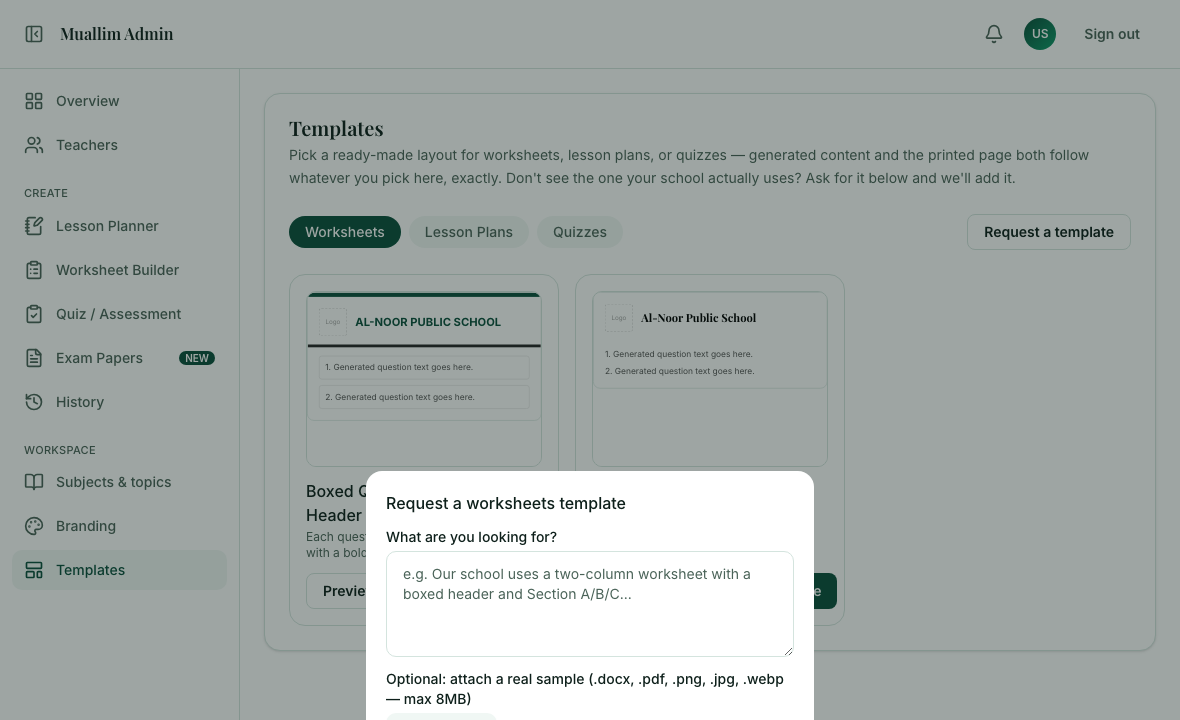
- What if my school's layout is not in the gallery?
- Select Request a template and describe it. We add requested layouts to the gallery.
- Can I change my template later?
- Yes, at any time. It applies to documents made afterwards; documents you already made keep their layout.
Ready to set up your school? Register a school and start with a 7-day trial of School Starter or School Pro.
Keep reading
- Add your logo and letterhead: Put your school's name, logo and footer on every printed worksheet, lesson plan and quiz.
- Set up your school in 10 minutes: A checklist for a new school: your plan, document style, logo, teachers and subjects.
- About the School Admin Dashboard: what it does and who it is for.