Quick answer. After this you can keep your roster up to date.
Open Teachers
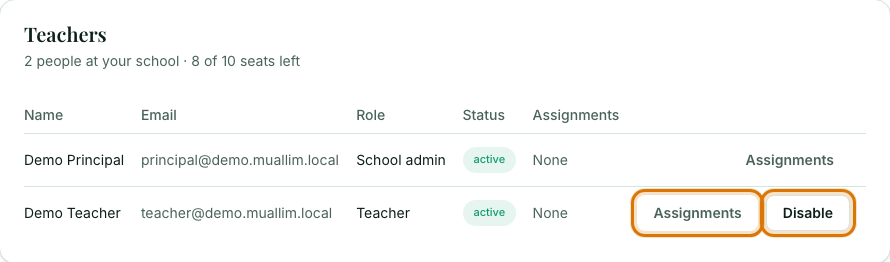
In the left menu choose Teachers. The page says how many people are at your school and how many seats are left on your plan.
Read the roster
Each row shows the person's name, email, role, status and how many classes they are assigned.
Assign classes
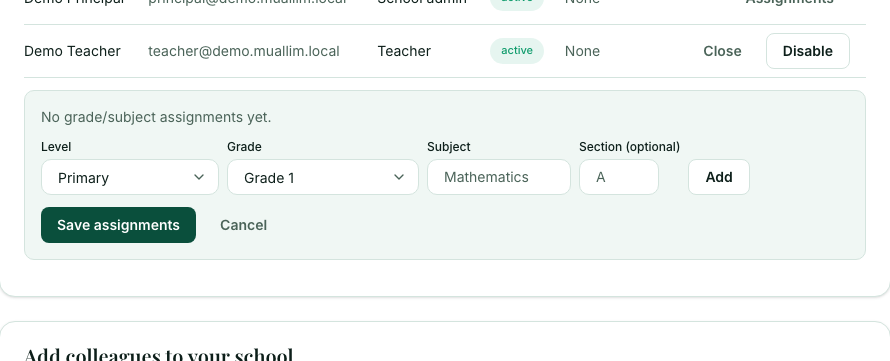
Select Assignments next to a teacher. Choose a Level, Grade and Subject (and a section if you use them), select Add, then Save assignments. Assignments matter when your school is locked to assigned classes. If it is not locked, teachers can pick any class anyway.
Disable or enable an account
Select Disable to switch a teacher's account off, for example when they have left. The button becomes Enable if you need to switch it on again. You cannot change your own status.
Frequently asked questions
- How do I assign classes to a teacher?
- On the Teachers page select Assignments next to the teacher, choose a level, grade and subject, select Add, then Save assignments.
- Do I have to assign classes?
- Only if you lock your school to assigned classes. By default every teacher can pick any grade and subject.
- How do I disable a teacher who has left?
- Select Disable next to their name on the Teachers page. Select Enable to switch the account on again.
Ready to set up your school? Register a school and start with a 7-day trial of School Starter or School Pro.
Keep reading
- Invite teachers to your school: Create an invite link, share it, and manage who has joined.
- Subjects and topics for your school: Lock teachers to assigned classes, or add your own subjects and textbook chapters for everyone.
- Plans, billing and payments: What each plan includes, how to upgrade, and how to pay by bank transfer or JazzCash.
- About the School Admin Dashboard: what it does and who it is for.