Quick answer. After this you have a Muallim account and know how to get back into it.
Read what the video shows
Choose Sign up as a teacher on the sign-in page. Enter your name, email and a password, agree to the terms and select Continue. Choose your board and select Create my account. You land in the Lesson Planner, ready to choose your class.
There are three ways in: sign up on your own as a teacher, register a school as its principal or owner, or join a school that has sent you an invite link. Start at app.muallim.org.
Choose Sign up as a teacher
On the sign-in page, choose Sign up as a teacher. School owners choose Register your school instead (see below).
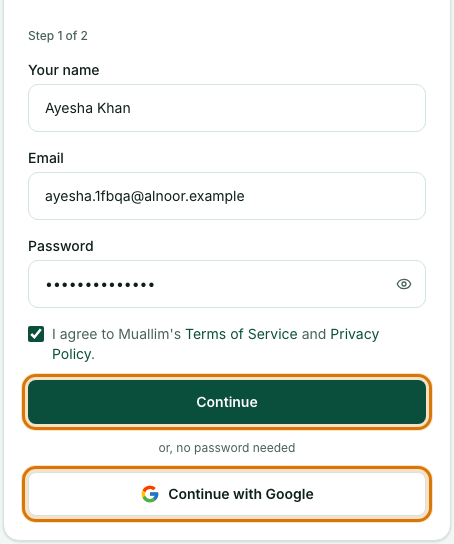
Step 1 of 2: your account
Enter your name, email and a password of at least 6 characters, and tick the box to agree to the Terms of Service and Privacy Policy. Then select Continue. If you prefer, select Continue with Google instead, with no password to remember.
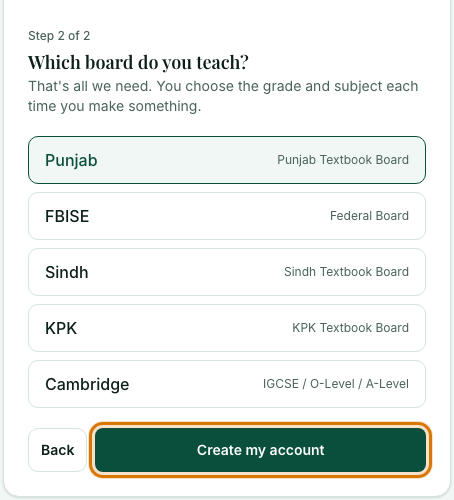
Step 2 of 2: your board
Choose the board you teach under, then select Create my account. That is the only thing asked: you pick your grade, subject and topic each time you make something.
Make your first lesson plan
You land in the Lesson Planner, ready to choose a class. The Free plan starts straight away and never expires.
To register a school, choose Register your school. You create your own account first, then enter the school's name, board and the levels it teaches, then confirm the plan. School Starter and School Pro begin with a 7-day free trial and need no card to start. Select Go to Dashboard to finish.
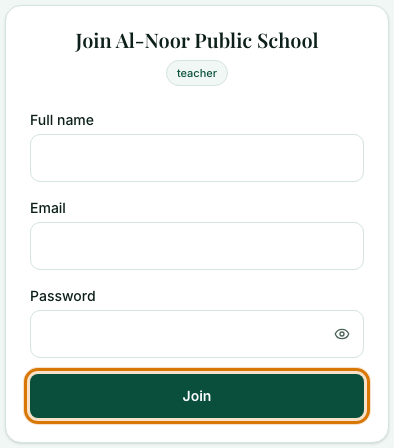
To join a school, open the invite link your school admin sent you. Enter your name, email and a password, then select Join. A link works once and lasts 7 days. If it does not work, see My invite link doesn't work.
Signing in later
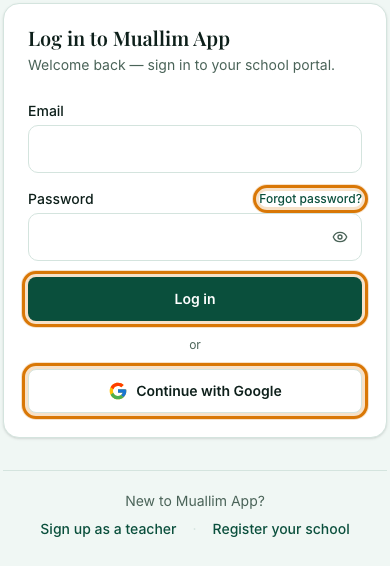
Open app.muallim.org, enter your email and password and select Log in, or select Continue with Google if that is how you signed up.
If you forget your password
Select Forgot password beside the Password box. We email you a link to choose a new one. See I can't sign in if anything goes wrong.
Frequently asked questions
- How do I create a Muallim account?
- Choose Sign up as a teacher, enter your name, email and a password of at least 6 characters, agree to the terms, then choose your board and select Create my account.
- Can I sign up with Google instead of a password?
- Yes. Select Continue with Google on the sign-up or sign-in page. You then choose your board to finish.
- How do I register a school on Muallim?
- Choose Register your school, create your account, enter the school's name, board and levels, and confirm the plan. School Starter and School Pro start with a 7-day free trial and need no card.
Ready to try it on your own class? The Free plan includes 10 AI generations in any 30 days. No card needed.
Keep reading
- Make your first lesson plan in 3 minutes: Pick a class and topic, generate a plan, check it and print it.
- I can't sign in: What to try when sign-in fails, and what the "Account disabled" screen means.
- My invite link doesn't work: Expired, already used, or not enough seats: what to do.
- Set up your school in 10 minutes: A checklist for a new school: your plan, document style, logo, teachers and subjects.